
How can teachers and students assess Portfolios?
How can teachers assess student work in Portfolios?
SpacesEDU Portfolios offer teachers the ability to provide feedback and assessment not only through comments and reactions, but also with proficiency levels tied to each portfolio section.
- Portfolios are available only with SpacesEDU Pro. Once the measurement option is enabled at the district level for portfolios, administrators will need to select which portfolios to allow teacher assessment for.
- In portfolios with this teacher assessment active, teachers will see a Section Measurement panel on the right-hand side. Clicking this panel opens a dialog where you can easily assign a proficiency to each section within the portfolio.

- You can also access the option to add a proficiency at the top of each individual section by clicking on the section name on the left-hand side of the screen.

- Proficiencies that have been assigned by a teacher can also be viewed by other teachers and administrators with access to the portfolio. The teacher who assigned the proficiency, and the date assigned, can be viewed by hovering over the i.
- Posts within Portfolios do not support adding Curriculum Tags, and any posts copied from classes will not include the tags or proficiencies from the original post.
- Portfolios do support student self-assessment using the Competency Framework, if this feature has been configured for your school district.
- With Competency Framework enabled, teachers can also view students' self-assessments on each post in the portfolio, to help them assess an overall proficiency for each section.

- Teacher Assessment in portfolios is available with or without the Competency Framework enabled. The only difference for teachers is the proficiency scale, and whether student self-assessments are visible.
- Without the Competency Framework, the proficiency scales for teachers assessing portfolio sections are the same as those used on Curriculum Tags. By default, these are Levels 1-4, but can be customized at the district level. Students also cannot self-assess within Portfolios unless Competency Framework has been configured for a district.
- With the Competency Framework enabled, the proficiency scales for each section are based on the scales defined for the competency linked with that section.
- Only students can self-assess within each portfolio post, if the option is enabled, and they cannot provide their own assessment at the section level. Teachers have the ability to view students' self-assessments, but can only set an overall proficiency level for each section, not on each post.
Student Self-Assessment in Portfolios
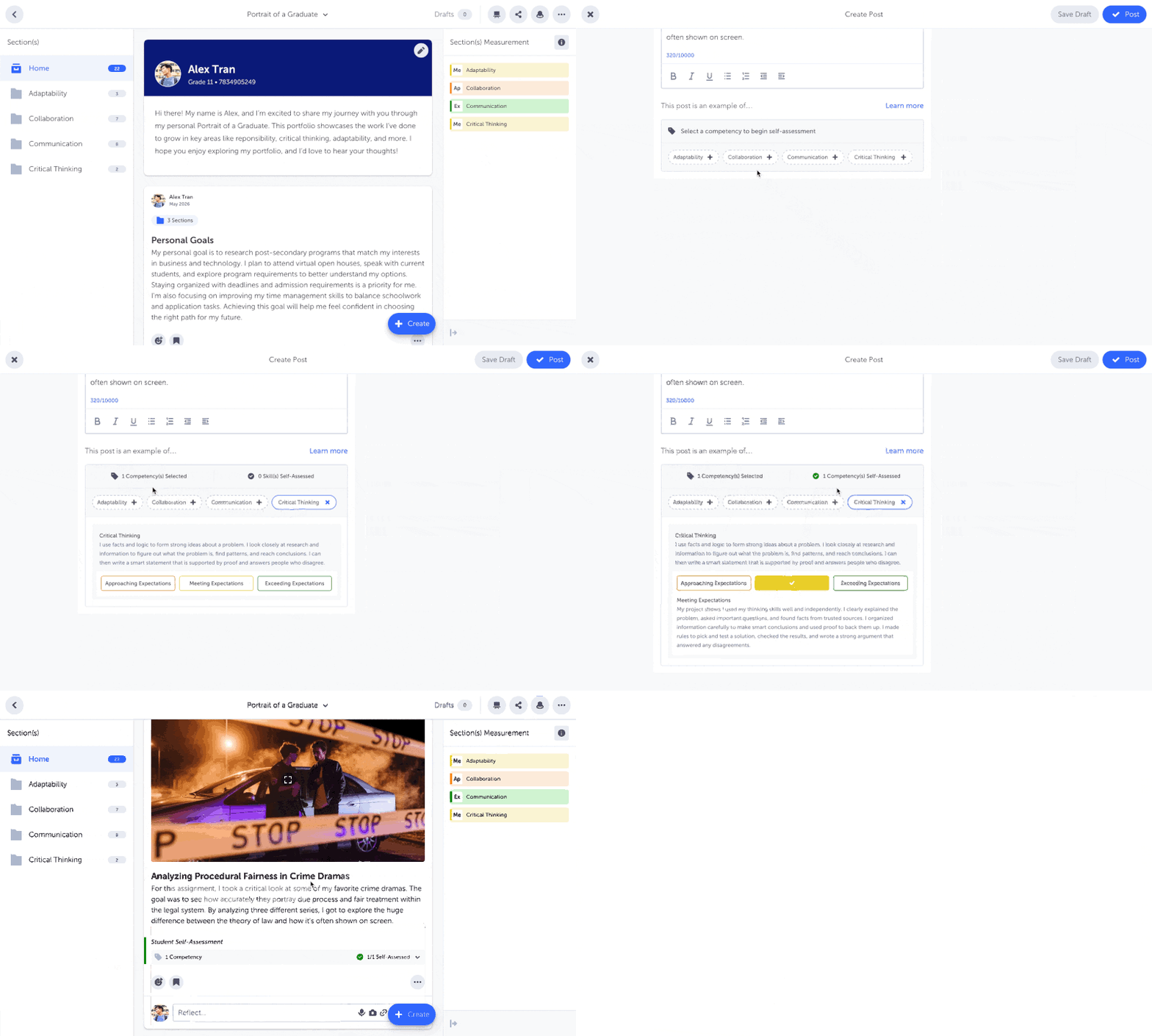
In order for students to assess their own work in Portfolios, the Competency Framework feature must first be enabled and configured by an administrator. Once enabled for a portfolio, students can follow the steps below to tag content with specific learning goals (Competencies and Skills) and rate their own proficiency.
1. Create or Edit a Post
Start by creating a new post in your Portfolio, or editing an existing one.
- Tip: If you create your post inside a specific Section (folder) that is already linked to a competency, the system will automatically select that competency for you to save time.
2. Select What Your Work Shows
Look for the section labeled "This post is an example of..." at the bottom of the screen.
- Choose a Competency: Click to select the main competency (e.g., "Thinking" or "Communication"), if it's not pre-selected.
- Choose a Skill: If additional options appear below, select the specific skill or sub-competency that applies to your work (e.g., "Creative Thinking").
- Competencies and Sections: You can select multiple competencies, if the same post is evidence for more than one. Adding more than one competency will automatically add the post to the sections associated with each competency.
3. Add Your Self-Assessment (Proficiency)
If your school has enabled self-assessment in this portfolio, you will see a proficiency scale after selecting a competency or skill (e.g., Developing, Proficient, Extending).
- Read the Descriptions: Click or hover over the levels to read the "I Can" statements or descriptions. These will help you decide which level matches your work.
- Select a Level: Click the level that best describes your progress for that skill.
- Learn More: You may see a "Learn More" link to view extra resources or rubrics provided by your school.
4. Review and Update
Once you publish your post, you will see a "Student Self-Assessment" badge on the post.
- View Details: Click the badge to expand it and see which competencies and levels you selected.
- Update: You can click this badge to change your tags or proficiency rating at any time.
5. Track Unassessed Posts
Forgot to rate a post? You can easily find work that still needs your attention.
- Click the three dots (...) menu at the top of your portfolio.
- Select Unassessed Posts.
- This will show a list of all posts where you have tagged a skill but haven't selected a proficiency level yet.
Updated on: 17/02/2026
Thank you!