
How can teachers and students assess Portfolios?
This article explains how teachers can assess student portfolios using proficiency levels, and how students can self-assess their own posts using the Competency Framework.
Before You Start
- Portfolio assessment is only available with SpacesEDU Pro and the Portfolios feature.
- Teacher Assessment must be enabled at the district level, then activated on individual Portfolio Templates by an administrator.
- Student Self-Assessment requires the Competency Framework to be configured for your district. Without it, students cannot self-assess within Portfolios.
- Teacher Assessment works with or without the Competency Framework enabled.
Teacher Assessment
Teachers assess student work at the section level — not on individual posts. You assign one overall proficiency to each portfolio section based on the evidence across all posts in that section.
How to assess a portfolio section:
- Open a student's portfolio
- Click the Section Measurement panel on the right-hand side
- A dialog opens showing all sections in the portfolio with their current proficiency levels
- Select a proficiency level for each section
- Close the dialog — your selections save automatically

Teacher Assessment
Teachers assess student work at the section level — not on individual posts. You assign one overall proficiency to each portfolio section based on the evidence across all posts in that section.
How to assess a portfolio section:
- Open a student's portfolio
- Click the Section Measurement panel on the right-hand side
- A dialog opens showing all sections in the portfolio with their current proficiency levels
- Select a proficiency level for each section
- Close the dialog — your selections save automatically

Proficiency Scales for Teachers
Configuration | Scale used |
|---|---|
Without Competency Framework | Same scale as Curriculum Tags (default: Levels 1–4, customizable at district level) |
With Competency Framework | Scale defined for the competency linked to that section |
Visibility of Teacher Assessments
Who can see | What they see |
|---|---|
Other teachers with portfolio access | Proficiency assigned, who assigned it, and date |
Administrators | Same as teachers |
Students | Not visible to students |
Teacher View with Competency Framework
When the Competency Framework is enabled, teachers can view students' self-assessments on each post, alongside their own section-level measurements — all in one screen.

Teacher View - Competency Framework
Key points for teachers:
- Teacher Assessment is available with or without the Competency Framework. The difference is the proficiency scale and whether student self-assessments are visible.
- Teachers can only assess at the section level. They cannot provide assessments on individual posts.
- Teachers can view students' self-assessments on each post to help inform their section-level proficiency decisions.
Student Self-Assessment in Portfolios
Students can tag their portfolio posts with competencies and skills, then rate their own proficiency. This requires the Competency Framework to be enabled and configured by an administrator.
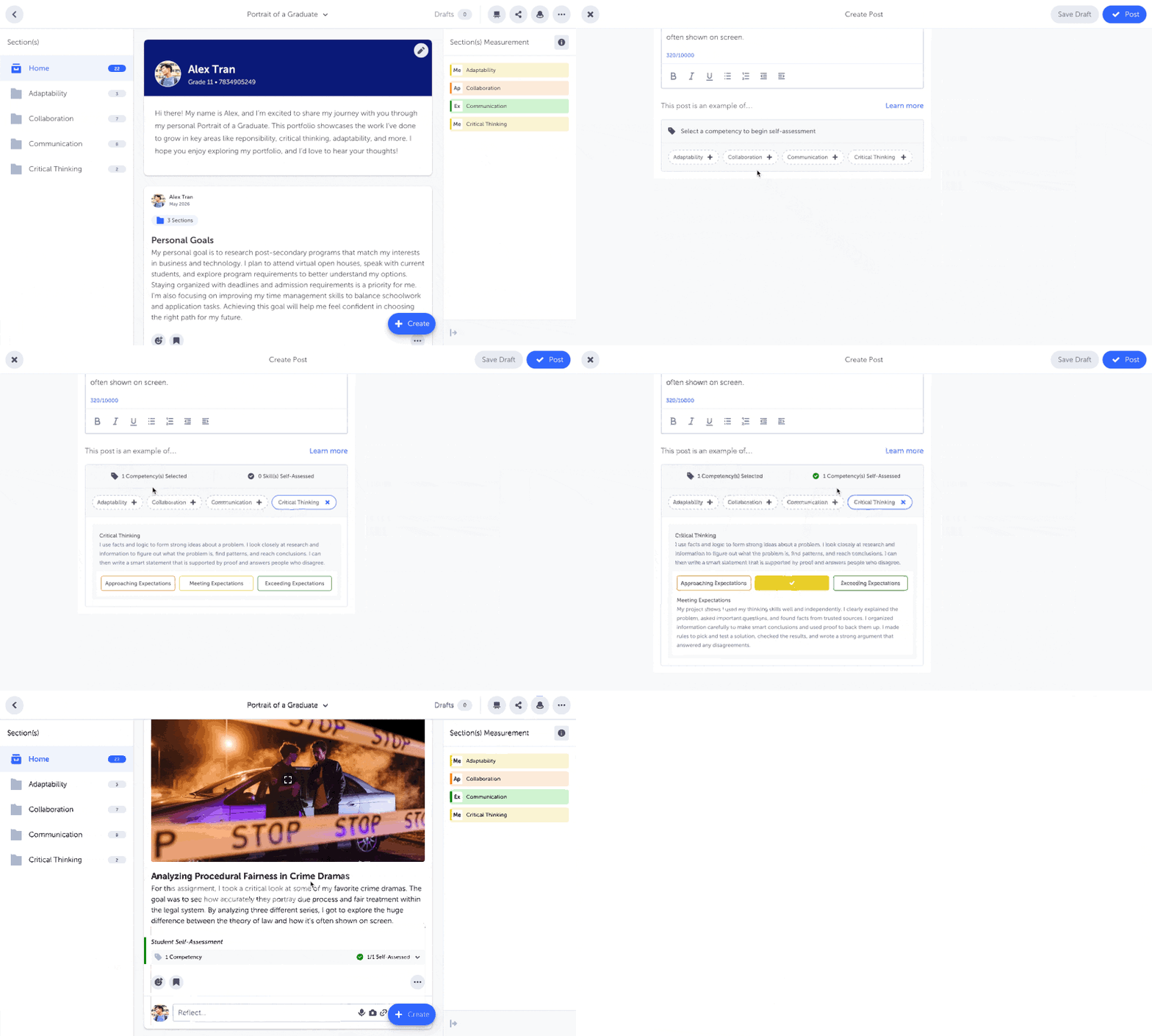
Step 1: Create or edit a post
Create a new post in your portfolio, or edit an existing one.
Step 2: Select what your work demonstrates
At the bottom of the post editor, look for the section labeled "This post is an example of..."
- Select a Competency (e.g., "Thinking", "Communication") — may be pre-selected based on your section
- Select a Skill if additional options appear (e.g., "Creative Thinking" under "Critical Thinking")
- Optionally select multiple competencies if the same post demonstrates more than one
Selecting multiple competencies automatically adds the post to all corresponding sections.
Step 3: Apply your proficiency level
If self-assessment is enabled for this portfolio:
- After selecting a competency or skill, a proficiency scale appears (e.g., Approaching Expectations, Meeting Expectations, Exceeding Expectations)
- Click or hover over each level to read the "I Can" statements
- Select the level that best matches your work
- Look for a Learn More link if your school has provided additional rubrics or resources
Step 4: Review and update
After publishing, a Student Self-Assessment badge appears on your post.
- Click the badge to view your selected competencies and proficiency levels
- Click again to update your tags or proficiency at any time
Step 5: Track unassessed posts
- Click the ⋯ menu at the top right of your portfolio
- Select Unassessed Posts
- View all posts where you've tagged a competency but haven't selected a proficiency level yet
Key Differences: Teacher vs Student Assessment
Teacher | Student | |
|---|---|---|
What they assess | Overall section (folder) | Individual posts |
Proficiency applied to | Portfolio sections | Competencies/skills on posts |
Can tag competencies | ❌ | ✅ |
Can self-assess posts | ❌ | ✅ |
Can assess sections | ✅ | ❌ |
Requires Competency Framework | No (works with or without) | Yes |
Good to Know
- Posts copied from Classes into Portfolios do not carry over Curriculum Tags or proficiencies from the original post.
- Posts within Portfolios do not support Curriculum Tags directly — assessment uses the Competency Framework or section-level proficiency only.
- For full setup details on the Competency Framework, see Competency Framework Guide.
Updated on: 24/07/2026
Thank you!